Sage 100

 View Only
Expand all | Collapse all

What are Your Techniques for Fast History Reports

  • 1.  What are Your Techniques for Fast History Reports

    Posted 02-19-2019 22:46
    Edited by Dan Burleson 02-21-2019 19:53
    How have members here solved the issue with long-running custom AR, SO and IM history reports for Standard and Advanced installations? 

    DSD Mirror? MS Access? Overnight reports? Avoid filtering or linking to non-key fields?

    (no, I'm not trying to sell anything)

    ------------------------------
    Dan Burleson
    Software Consultant
    Connex Software
    Corvallis OR
    541-224-6642
    ------------------------------


  • 2.  RE: What are Your Techniques for Fast History Reports

    Posted 02-19-2019 22:53
    Yes all of the above... you nailed it.

    Get Outlook for iOSo


    ------Original Message------

    How have members here solved the issue with long running custom AR, SO and IM history reports for Standard and Advanced installations? 

    DSD Mirror? MS Access? Overnight reports? Avoid filtering or linking to non-indexed fields?

    Asking for a friend! (no, I'm not trying to sell anything)

    ------------------------------
    Dan Burleson
    Software Consultant
    Connex Software
    Corvallis OR
    541-224-6642
    ------------------------------


  • 3.  RE: What are Your Techniques for Fast History Reports

    Posted 02-19-2019 23:17
    SQL Server 2017 Express provides for 10GB databases and it is free. Setup a linked server to Sage 100 using ODBC and transfer the data into SQL Server, then run reports. data manipulation, or extraction. For example, after transferring a few tables, a query in SQL Server can produce data for a Shopify upload. 

    The item number of all items sold on the website
    The total on hand quantity less quantity on sales orders for these items, Include all warehouses except 999
    The item price, which is either the sale price or the price for price level A customers
    The average per item cost

    This is done so elegantly in SQL Server and runs wickedly fast after the data is in SQL Server. The data transfers can be setup to run automatically with Windows scheduler. SQL Server Express doesn't have a scheduler, so Windows Scheduler next best thing. Data transfer is fastest if SQL Server Express installed on the same server as Standard or Advanced. 

    I've become a Premium snob. If it isn't Sage 100 Premium, why bother.

    ------------------------------
    Myron Stevenson
    Clearis Consulting
    ------------------------------


  • 4.  RE: What are Your Techniques for Fast History Reports

    Posted 02-19-2019 23:35
    Edited by Dan Burleson 02-19-2019 23:38
    Good one Myron! I should have mentioned that. That's much better than MS Access which isn't designed to run unattended as SQL Server is.

    Anyone else? I am holding out another pretty easy one that I recently used to speed up those long running history reports. I want to see if anyone has thought of it or not. It's free and easy. Common, dig deep!

    ------------------------------
    Dan Burleson
    Software Consultant
    Connex Software
    Corvallis OR
    541-224-6642
    ------------------------------


  • 5.  RE: What are Your Techniques for Fast History Reports

    Posted 02-20-2019 08:27
    I'm with Myron; we've converted just about everyone to Premium (that we can). 

    Previously, for those Advanced clients, we would just drop and recreate the SQL tables nightly.  For others, we had a MERGE/INSERT stored proc to keep them a bit more up-to-date during the day.  

    Lately, I'm using a lot of SQL + PowerShell + Import-Excel (https://github.com/dfinke/ImportExcel) to filter and format data right into Excel.

    ------------------------------
    Steve Iwanowski, NextStep Technology Advisors, aka DSD Lancaster PA ¯\_(ツ)_/¯
    ------------------------------


  • 6.  RE: What are Your Techniques for Fast History Reports

    Posted 02-20-2019 09:28
    SQL Express, scheduled SQLCMD batch files to trigger stored procedures which pull in data from a linked server, with SQL Views to do all the heavy data processing in SQL instead of in a report.  (Always use a DSN in reports to make server moves easier).
    For run on demand (no parameters), do the same setup with a remote start batch file and Visual Cut to email the report.

    ------------------------------
    Kevin Moyes
    Technical Systems Analyst
    Munjal White Consulting Co.
    Toronto ON
    ------------------------------


  • 7.  RE: What are Your Techniques for Fast History Reports

    Posted 02-20-2019 10:23

    We use a SQL Warehouse, and write the reports in SQL.  Inexpensive to set up, and all of the Custom Reports can then be written in SQL.  And the data is populated nightly from Standard or Advanced Sage 100 to the SQL Warehouse where the reports typically can be automated to run at night, but could also be run manually during the day...


    Sue Bennett | President

    P. 503 620 3484 | F. 503 620 2765

    12559 SW 69th Ave | Tigard, OR  97223

    Sue@benpor.com www.benpor.com

    Bennett/Porter Blog facebook twitter


    ------Original Message------

    How have members here solved the issue with long running custom AR, SO and IM history reports for Standard and Advanced installations? 

    DSD Mirror? MS Access? Overnight reports? Avoid filtering or linking to non-indexed fields?

    Asking for a friend! (no, I'm not trying to sell anything)

    ------------------------------
    Dan Burleson
    Software Consultant
    Connex Software
    Corvallis OR
    541-224-6642
    ------------------------------


  • 8.  RE: What are Your Techniques for Fast History Reports

    Posted 02-21-2019 20:25
    Edited by Dan Burleson 02-24-2019 16:10

    Thank you to all who have responded. These are great contributions and make an excellent resource for our group!


    Recently, I was charged with writing a report that would consolidate all the historical invoices for a given completed sales order into one consolidated invoice.  While waiting on a client's IT department to install database software to speed up the report, some experimenting led me to a solution that, fortunately, was well received by the client and reseller. If you ever find yourself in the unfortunate position in which I was (without administrator privileges to a customer's system), you may find this solution helpful.


    It has been my experience that, when the selection criteria involves fields other than the primary key field (KPRIMARY) of heavily populated history tables, the performance of custom history reports is negatively affected (runs very slowly). I worked around this pitfall without any of the 3rd party tools (mentioned in previous comments) by repurposing the history reports dialog on the standard Reports menus. This may sound a bit odd, but I am happy to explain below how I've done this for resellers and consultants in the group.


    Reports including the word "History" on any Reports menu run very fast yet provide selection criteria on fields other than the key fields. For example, the "Sales Order and Quote History Report". The "SalesOrderNo" field is the key field, but the report dialog box provides other non-key selections (listed below) that, when selected, do not negatively affect speed performance.
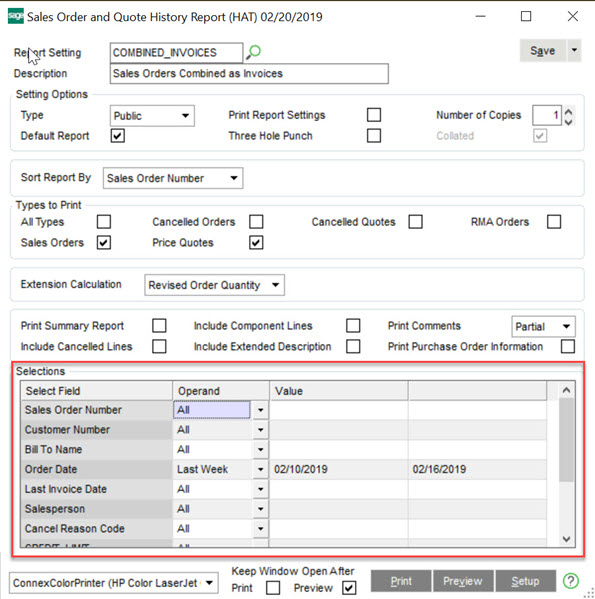
    Sales Order and Quote History Report


    The method I shall describe utilizes existing history reports - not as reports, but as a selection mechanism to generate a record set of keys usable by your own custom history report. The record set is defined with the criteria in the Selections area of the report's dialog in Sage 100 plus an added SQL command included with Crystal Reports. Later, I shall describe the detailed steps of how to do this, but, basically, the Sage supplied history report is replaced by a user's custom report with an added SQL stored procedure command. I use this (seldom mentioned) Crystal Reports feature which resembles any other table in the "Database Expert" to construct a record set of keys that I shall call the "key table" from the report's work table (e.g. "SO_SalesOrderQuoteHistoryWrk"). The key table's record set is identified by the standard report's selection parameters and the added SQL command. It  may sound complicated, but is not.


    Adding a stored procedure to a Crystal report is straightforward. First, one opens the "Database Expert" on the "Database" menu, then selects and expands the "SOTAMAS90" data source (the first item listed is always "Add Command"). In the image below the added command has been renamed from "Command" to "SO_SalesOrderQuoteHistoryHeader" to accurately label the underlying table from which the SQL command draws.
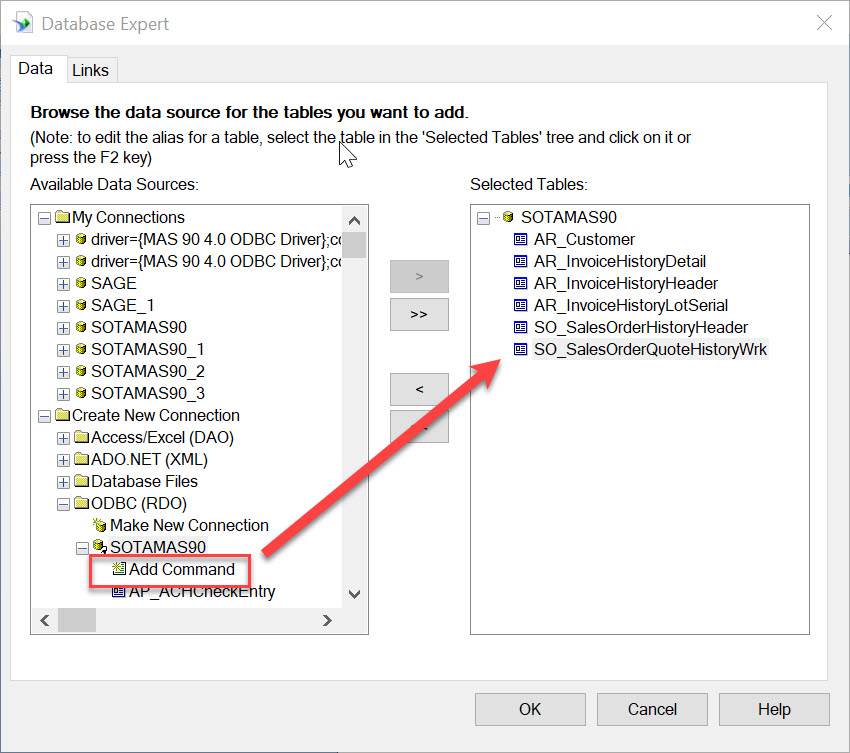
    Selecting Add Command

    Clicking "Add Command" will display a  dialog box where one can enter a SQL command. An example is shown here:
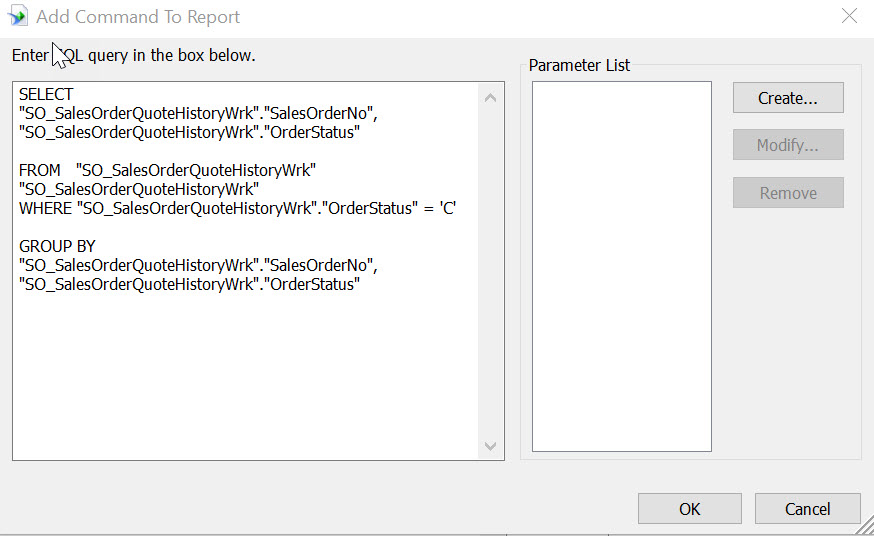

    SQL Add Command Dialog

    Notice above that I am able to further filter by order status, which is not in the report dialog list of selections. This is done without a performance penalty. Also, since it is possible that the report can be set to run either as a detailed or a summary report, the query above is a summary query to ensure that a distinct list of keys are generated.


    Once this SQL command is added to the report, it appears as a table named "Command" and can be linked to the left of the sales order history header table of the custom report by the sales order field. The table can be renamed with the "F2" key. Any existing selection criteria in the custom report should be replaced with either selections on the report dialog or with a SQL "WHERE" statement similar to the example above.


    Summary steps to improving the performance of a custom history report are listed below:

    1. Create a custom Report Setting of the history report corresponding to the history table (that is the basis of the custom report)
    2. Replace the saved standard report with your own custom history report in the folder created with the name of the report setting saved in step 1
    3. Add the key table (created by the stored procedure command shown above) to the left of the custom report's history header table (e.g. "SO_SalesOrderHistoryHeader") and link by the key field (e.g. "SalesOrderNo")
    4. Add any addition selection criteria to the SQL command with a WHERE clause (as in the example above) and make sure all the fields used with the WHERE clause are also included with the SELECT clause.
    5. If any of the additional selection criteria should be on the report dialog rather than buried in the SQL command, consider adding it as a UDF to the work table so that it appears in the Selections area.


    I hope some find this post useful and I would welcome any feedback or questions.


    Dan


    ------------------------------
    Dan Burleson
    Software Consultant
    Connex Software
    Corvallis OR
    541-224-6642
    ------------------------------


  • 9.  RE: What are Your Techniques for Fast History Reports

    Posted 02-22-2019 08:28
    Awesome @Dan Burleson! Would you be willing to share the rpt file??​

    ------------------------------
    Therese Logeais
    Technology Integrators
    ------------------------------


  • 10.  RE: What are Your Techniques for Fast History Reports

    Posted 02-24-2019 16:07
      |   view attached
    Yes, see the attached invoice form. The original project form was proprietary and complex, so I've attached a simplified standard invoice form that combines all invoices for a given order.

    When using this technique, please bear in mind a couple of points with regard to what situations will benefit most with this trick for installations with large history tables:
    1. When the report's selections include something other than the history table's key field ( "SalesOrderNo" in this example). When the table's key field is the only criteria for the report, one doesn't need to use any performance tricks as the report will perform quickly without them. For this example, using selections such as "Customer Number", "Order Date", "Salesperson", and "Last Invoice Date" will perform much faster using this technique than a standalone report or one on the Custom Report menu.
    2. When the selection criteria is most restrictive. This is because the work tables on which the standard reports are based are dynamically filled from the history files based on the Selections section of the Reports dialog box.  The less restrictive the criteria, the more of the history table is transferred to the work table thereby slowing the process. Using a selection criteria that encompasses years of sales order history is not going to run fast. 


    ------------------------------
    Dan Burleson
    Software Consultant
    Connex Software
    Corvallis OR
    541-224-6642
    ------------------------------

    Attachment(s)


  • 11.  RE: What are Your Techniques for Fast History Reports

    Posted 02-24-2019 19:19
    Edited by Doug Higgs 02-24-2019 19:21
    Can you provide an example (a screen shot) of the SO_SalesOrderQuoteHistoryWrk table's record set?  Is the entire work table replaced by the new work table, now with only two keys?

    ------------------------------
    Doug Higgs
    Assistant Technical Support / Building Maintenance Specialist
    Midwest Commerce Solutions, Inc
    ------------------------------


  • 12.  RE: What are Your Techniques for Fast History Reports

    Posted 02-24-2019 22:31
    Edited by Dan Burleson 02-24-2019 22:32
    See the 1st screen shot below. The new work table view is only two columns in this example. There are no keys in the new work table since it is actually a view. Optimal performance is achieved when the linked fields (those touched by the linking arrow head) are key fields. The original work table is unmodified unless one chooses to add UDF's. The stored procedure command syntax (as shown in an earlier post) only brings two fields - SalesOrderNo and OrderStatus into the report. Only the OrderStatus field is required (for this sample report) in the WHERE clause and isn't needed to appear in the view, only the SalesOrderNo and I've eliminated it in the attached view.

    View added to a custom report in  order to speed it up

    The following graphic shows how  the work table view links into an existing history report provided in the prior post.

    How the work table view links into an existing report


    ------------------------------
    Dan Burleson
    Software Consultant
    Connex Software
    Corvallis OR
    541-224-6642
    ------------------------------