Thank you to all who have responded. These are great contributions and make an excellent resource for our group!
Recently, I was charged with writing a report that would consolidate all the historical invoices for a given completed sales order into one consolidated invoice. While waiting on a client's IT department to install database software to speed up the report, some experimenting led me to a solution that, fortunately, was well received by the client and reseller. If you ever find yourself in the unfortunate position in which I was (without administrator privileges to a customer's system), you may find this solution helpful.
It has been my experience that, when the selection criteria involves fields other than the primary key field (KPRIMARY) of heavily populated history tables, the performance of custom history reports is negatively affected (runs very slowly). I worked around this pitfall without any of the 3rd party tools (mentioned in previous comments) by repurposing the history reports dialog on the standard Reports menus. This may sound a bit odd, but I am happy to explain below how I've done this for resellers and consultants in the group.
Reports including the word "History" on any Reports menu run very fast yet provide selection criteria on fields other than the key fields. For example, the "Sales Order and Quote History Report". The "SalesOrderNo" field is the key field, but the report dialog box provides other non-key selections (listed below) that, when selected, do not negatively affect speed performance.
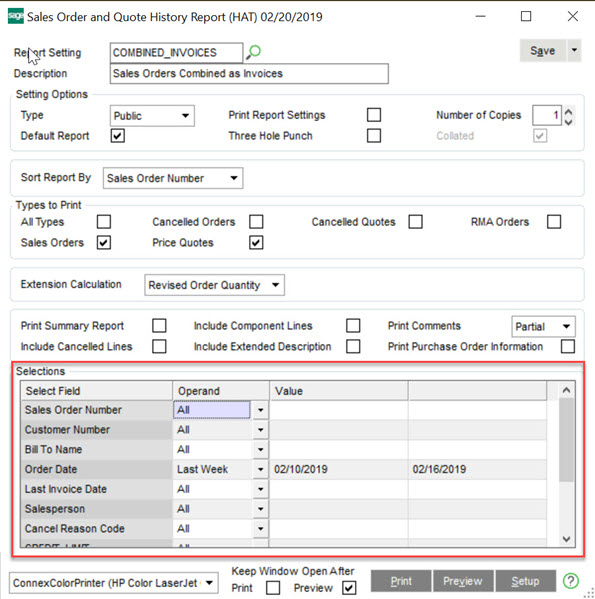
The method I shall describe utilizes existing history reports - not as reports, but as a selection mechanism to generate a record set of keys usable by your own custom history report. The record set is defined with the criteria in the Selections area of the report's dialog in Sage 100 plus an added SQL command included with Crystal Reports. Later, I shall describe the detailed steps of how to do this, but, basically, the Sage supplied history report is replaced by a user's custom report with an added SQL stored procedure command. I use this (seldom mentioned) Crystal Reports feature which resembles any other table in the "Database Expert" to construct a record set of keys that I shall call the "key table" from the report's work table (e.g. "SO_SalesOrderQuoteHistoryWrk"). The key table's record set is identified by the standard report's selection parameters and the added SQL command. It may sound complicated, but is not.
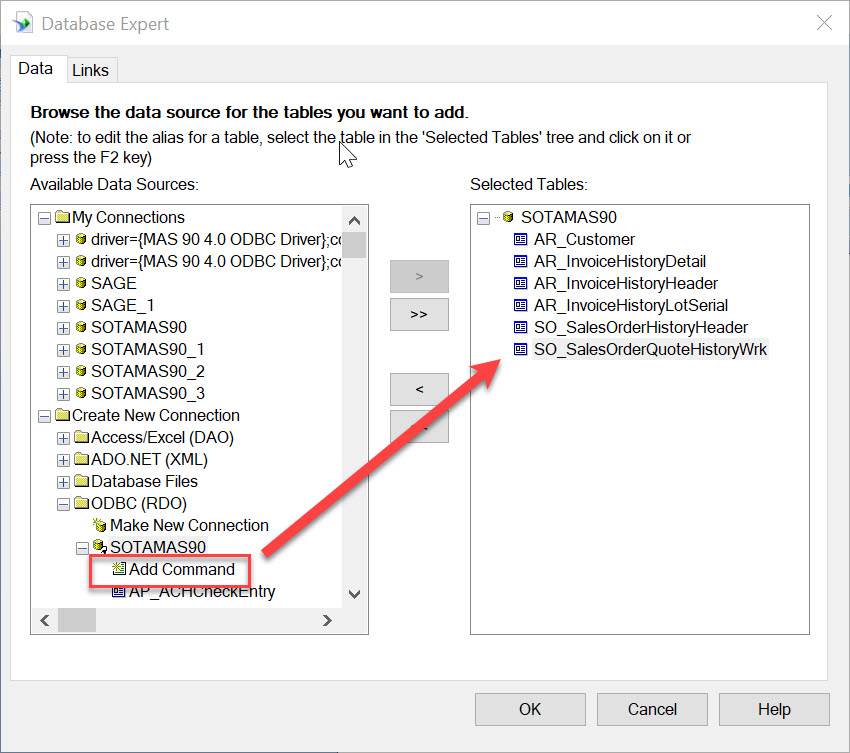
Adding a stored procedure to a Crystal report is straightforward. First, one opens the "Database Expert" on the "Database" menu, then selects and expands the "SOTAMAS90" data source (the first item listed is always "Add Command"). In the image below the added command has been renamed from "Command" to "SO_SalesOrderQuoteHistoryHeader" to accurately label the underlying table from which the SQL command draws.
Clicking "Add Command" will display a dialog box where one can enter a SQL command. An example is shown here:
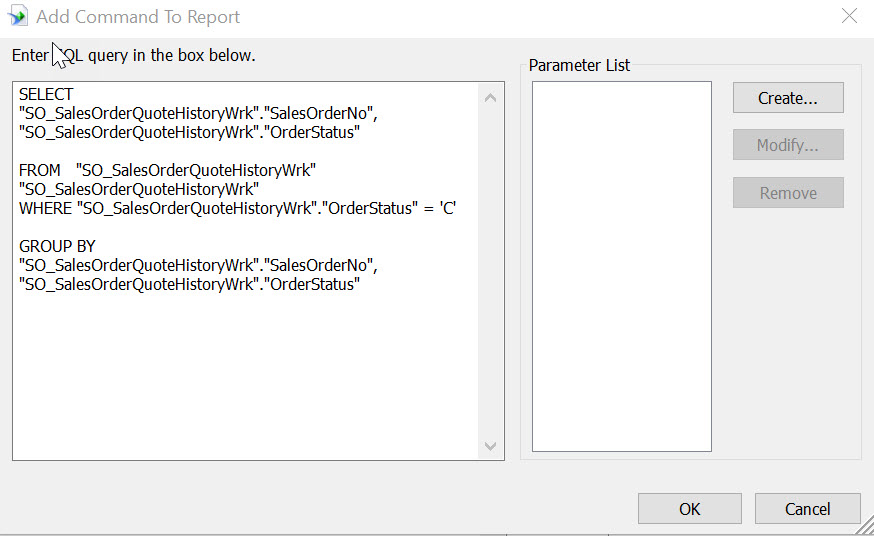
Notice above that I am able to further filter by order status, which is not in the report dialog list of selections. This is done without a performance penalty. Also, since it is possible that the report can be set to run either as a detailed or a summary report, the query above is a summary query to ensure that a distinct list of keys are generated.
Once this SQL command is added to the report, it appears as a table named "Command" and can be linked to the left of the sales order history header table of the custom report by the sales order field. The table can be renamed with the "F2" key. Any existing selection criteria in the custom report should be replaced with either selections on the report dialog or with a SQL "WHERE" statement similar to the example above.
Summary steps to improving the performance of a custom history report are listed below:
- Create a custom Report Setting of the history report corresponding to the history table (that is the basis of the custom report)
- Replace the saved standard report with your own custom history report in the folder created with the name of the report setting saved in step 1
- Add the key table (created by the stored procedure command shown above) to the left of the custom report's history header table (e.g. "SO_SalesOrderHistoryHeader") and link by the key field (e.g. "SalesOrderNo")
- Add any addition selection criteria to the SQL command with a WHERE clause (as in the example above) and make sure all the fields used with the WHERE clause are also included with the SELECT clause.
- If any of the additional selection criteria should be on the report dialog rather than buried in the SQL command, consider adding it as a UDF to the work table so that it appears in the Selections area.
I hope some find this post useful and I would welcome any feedback or questions.
Dan
------------------------------
Dan Burleson
Software Consultant
Connex Software
Corvallis OR
541-224-6642
------------------------------
Original Message:
Sent: 02-20-2019 10:22
From: Sue Bennett
Subject: What are Your Techniques for Fast History Reports
We use a SQL Warehouse, and write the reports in SQL. Inexpensive to set up, and all of the Custom Reports can then be written in SQL. And the data is populated nightly from Standard or Advanced Sage 100 to the SQL Warehouse where the reports typically can be automated to run at night, but could also be run manually during the day...
Sue Bennett | President
P. 503 620 3484 | F. 503 620 2765
12559 SW 69th Ave | Tigard, OR 97223
Sue@benpor.com | www.benpor.com
Bennett/Porter Blog | facebook | twitter

Original Message------
How have members here solved the issue with long running custom AR, SO and IM history reports for Standard and Advanced installations?
DSD Mirror? MS Access? Overnight reports? Avoid filtering or linking to non-indexed fields?
Asking for a friend! (no, I'm not trying to sell anything)
------------------------------
Dan Burleson
Software Consultant
Connex Software
Corvallis OR
541-224-6642
------------------------------