Fyi, David's solution doesn't actually move files, just fixes the pathing.
Original Message:
Sent: 09-16-2025 21:39
From: Wayne Schulz
Subject: Utility To Update Paperless Office Paths
Why Use Speck Utilities To Move Paperless Documents
Use Speck's Paperless Office Paths Utility when you need a bulk, automated fix to Paperless Office PDF pathing problems. The Sage-provided tools handle some of this but are more limited and slower for large jobs.
When to Use
After moving Paperless Office PDF storage to a new server or file share and the paths in Sage still point to the old location.
When hundreds or thousands of PDFs must be re-pointed at once across multiple companies or modules.
When setup files themselves also require path adjustments (Speck's tool updates these, Sage's does not).
When you want automatic backups before making changes, minimizing risk if the update misfires.
When you need to clear and reload grids for long paths and quickly re-run to verify results.
Advantages Over Sage Utilities
Bulk processing – Handles very large volumes quickly (reported success with 200k+ PDFs across 15 locations in under a minute).
Broader coverage – Updates both the Paperless Office log tables and setup files. Sage's Relink PDF Documents utility focuses on log records only.
Safety – Creates backups before modifying records.
Simplicity – Uses straightforward string replacement for paths, reducing manual work.
Speed – More efficient for large-scale re-pointing compared to Sage's Link Maintenance or Relink PDF utilities, which can be slower or more granular.
When Sage's Utilities May Suffice
If only a few paths need fixing.
If you need selective control at the document, type, or module level.
If you are already on Sage 100 v2025+ and want to stay within officially supported tools.
Takeaway: use Speck's utility for scale, speed, and setup-file coverage. Use Sage's native utilities for smaller, controlled fixes where vendor-supported tools are preferred.
------------------------------
Wayne Schulz
wayne@s-consult.com
Schulz Consulting
(860) 516-8990
Connecticut
------------------------------
Original Message:
Sent: 08-15-2025 10:06
From: Brett Zimmerman
Subject: Utility To Update Paperless Office Paths
...although I suppose Sage's utility is useful when you just have a couple/few paths [or don't know about David's solution :) ], but I'd be interested to know how the performance is (if anyone is able to generate some metrics).
------------------------------
Brett Zimmerman
Net at Work
Greater Boston Area
Original Message:
Sent: 08-15-2025 09:30
From: Brett Zimmerman
Subject: Utility To Update Paperless Office Paths
Well I see no reason not to use David's. I just had to re-point a couple hundred thousand pdf's that reside in 15 different locations. Took about a minute to do all of them at once!! Fyi, I usually re-run the utility afterwards just to confirm it got everything, and in this case it did pick up some additional pdf's to re-point.
------------------------------
Brett Zimmerman
Net at Work
Greater Boston Area
Original Message:
Sent: 08-14-2025 12:30
From: David Speck II
Subject: Utility To Update Paperless Office Paths
I don't think it has anything to do with my utility. I have not had a chance to test Sage's utility but it seems to give you more control at the type, module, and document level. It does have "ALL" options for everything and has an option to include the associated documents as well.
The two things that I think might be unique to my utility is that my utility will also update the set up files and it makes backups of the files before making any changes if changes are required.
------------------------------
David Speck II
Blytheco LLC
Original Message:
Sent: 08-14-2025 08:32
From: Brett Zimmerman
Subject: Utility To Update Paperless Office Paths
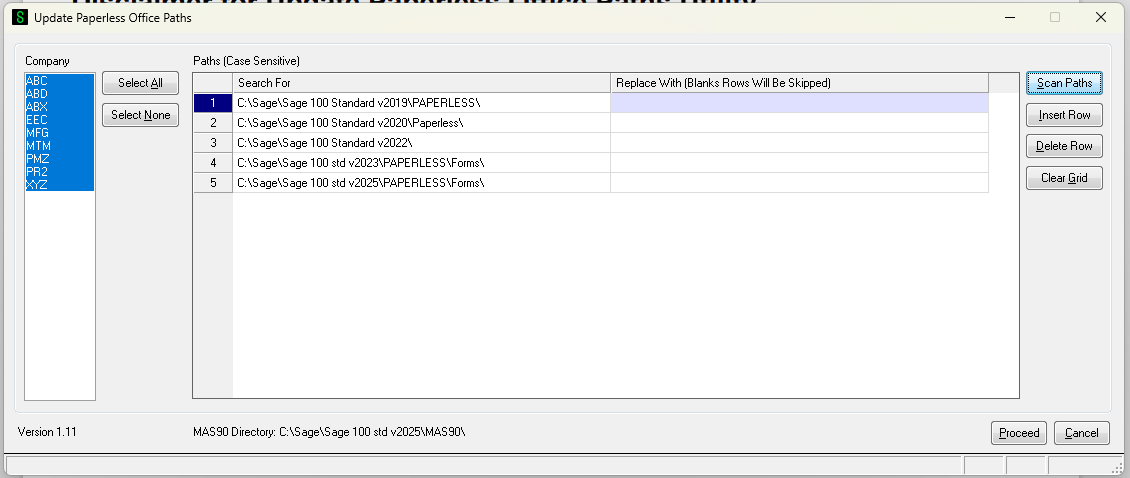
@David Speck II, do you know if the new Relink PDF Documents utility that came with v2024 has anything to do with yours? Doesn't sound like many people if anybody knew it was there. On the surface though just based on the interface, I prefer David's (below) especially since it allows for doing everything at once.
The Relink PDF Documents utility has been added to the Utilities menu available from the Run Program window. In the Sage 100 Desktop, select File > Run. In the Run Program window, enter *utl at the Program field to open the Utilities menu.
Use this utility to update the PDF location reference in the Paperless Office log records for PDFs that were moved to a new server or folder using a method other than the Move button in viewer tasks. This provides a faster way to relink the Paperless Office log records than the Link Maintenance utility.
David's solution:
------------------------------
Brett Zimmerman
Net at Work
Greater Boston Area
Original Message:
Sent: 09-10-2024 09:46
From: David Speck II
Subject: Utility To Update Paperless Office Paths
Thank you for taking the time to create that KB Wayne. I was reviewing the docs in it and noticed the .doc file still states that the utility does not work for Premium (SQL) editions and this is no longer the case. As of version 1.08, released on 2/23/2023, the utility will work on all editions of Sage 100. I also noticed that the version in the zip is 1.10 instead of the most recent 1.11 version. Using the DropBox link will make sure you get the most recently released version.
------------------------------
David Speck II
Blytheco LLC
Original Message:
Sent: 09-10-2024 08:57
From: Wayne Schulz
Subject: Utility To Update Paperless Office Paths
I've added this documentation to the 90 Minds Content Library - access David's Utility here.If you are challenged for a Google login you must login using the same Google account you've already registered with 90 Minds for content library access. Read below boilerplate for background.
If you don't have access to the 90 Minds content library then please use this link to request access.
If you aren't sure if you have access - you can visit our Read Me First: About 90 Minds Content Library. If you are challenged for a login and your existing Google account does not work then you will need to request access using our link to request access.
Please do not request access to individual content library documents.
We need to add you to a group so that you have access to the appropriate collection of documents.
This makes managing access much easier since we only need to add you once to a group ( as opposed to adding you to every individual document).
How Google Accounts work ( via Google )
A Google Account gives you Google-wide access to most Google products, such as Google Ads, Gmail, and YouTube, using the same username and password.
Find out if you have a Google Account
- If you're already using a Google product such as Gmail, for example, then you have a Google Account.
- If you're not sure you've signed up for any Google products, you can check by visiting the Google Accounts password change page. Enter any email address you think you might've used to create a Google Account.
- If we don't recognize it, you'll immediately see a message from us. Below the message, you'll see a link to create a Google Account using that email address.
- If we see that your email address is tied to a Google Account, we'll send you an email with a link to reset the Google Account's password.
What you need to create a Google Account
If you don't have a Google Account but do have an email address, you can create a Google account using that email address. If you don't have an email address, you can create one with Gmail, at https://accounts.google.com/SignUp.
------------------------------
Wayne Schulz
wayne@s-consult.com
Schulz Consulting
(860) 516-8990
Moodus, CT