I used this script on a recent upgrade, to fix SQL permissions (where I had to move the databases back to the original SQL instance after the migration / conversion).
use MAS_System; exec sp_changedbowner 'MAS_User'; exec sp_dropuser 'MAS_Reports'; exec sp_grantdbaccess 'MAS_Reports'; exec sp_addrolemember 'db_datareader', 'MAS_Reports';
use MAS_WM6; exec sp_changedbowner 'MAS_User'; exec sp_dropuser 'MAS_Reports'; exec sp_grantdbaccess 'MAS_Reports'; exec sp_addrolemember 'db_datareader', 'MAS_Reports';
use MAS_WMA; exec sp_changedbowner 'MAS_User'; exec sp_dropuser 'MAS_Reports'; exec sp_grantdbaccess 'MAS_Reports'; exec sp_addrolemember 'db_datareader', 'MAS_Reports';
use MAS_WME; exec sp_changedbowner 'MAS_User'; exec sp_dropuser 'MAS_Reports'; exec sp_grantdbaccess 'MAS_Reports'; exec sp_addrolemember 'db_datareader', 'MAS_Reports';
use MAS_WMH; exec sp_changedbowner 'MAS_User'; exec sp_dropuser 'MAS_Reports'; exec sp_grantdbaccess 'MAS_Reports'; exec sp_addrolemember 'db_datareader', 'MAS_Reports';
use MAS_WMO; exec sp_changedbowner 'MAS_User'; exec sp_dropuser 'MAS_Reports'; exec sp_grantdbaccess 'MAS_Reports'; exec sp_addrolemember 'db_datareader', 'MAS_Reports';
use MAS_WMV; exec sp_changedbowner 'MAS_User'; exec sp_dropuser 'MAS_Reports'; exec sp_grantdbaccess 'MAS_Reports'; exec sp_addrolemember 'db_datareader', 'MAS_Reports';
use MAS_WMW; exec sp_changedbowner 'MAS_User'; exec sp_dropuser 'MAS_Reports'; exec sp_grantdbaccess 'MAS_Reports'; exec sp_addrolemember 'db_datareader', 'MAS_Reports';
use MAS_WMZ; exec sp_changedbowner 'MAS_User'; exec sp_dropuser 'MAS_Reports'; exec sp_grantdbaccess 'MAS_Reports'; exec sp_addrolemember 'db_datareader', 'MAS_Reports';
use MAS_WPR; exec sp_changedbowner 'MAS_User'; exec sp_dropuser 'MAS_Reports'; exec sp_grantdbaccess 'MAS_Reports'; exec sp_addrolemember 'db_datareader', 'MAS_Reports';
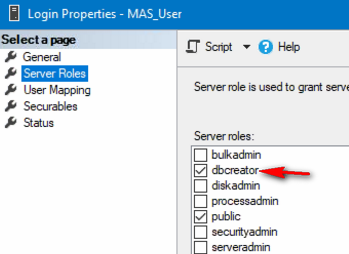
If you are manually creating the SQL logins, you might want to add the server role for MAS_User:
------------------------------
Kevin Moyes
Technical Systems Analyst
Munjal White Consulting Co.
Toronto ON
------------------------------
Original Message:
Sent: 11-19-2025 11:43
From: Wayne Schulz
Subject: MAS_USERS and MAS_REPORTS setup
I was surprised ( happy ) that Google Gemini was able to generate this without me having to supply a user guide to point it to the Sage KB. I'm not sure the info is every step that needs to be taken. In my case there were some minor errors that came up and in every case I asked Gemini about the error and it gave me a script to fix it.
------------------------------
Wayne Schulz
wayne@s-consult.com
Schulz Consulting
(860) 516-8990
Connecticut
------------------------------
Original Message:
Sent: 11-19-2025 11:40
From: Wayne Schulz
Subject: MAS_USERS and MAS_REPORTS setup
Thanks Phil - I went though this and recreating and adjusting these two accounts within the SQL server was able to be scripted ( used Google Gemini AI ) and appears to have worked. I'm now back into. Sage 100 2025.
The condensed steps included your recommendation and the final step was running Sage 100 2025 SQL Settings Utility (Start Menu > Sage 100 2025 > SQL Settings). Then I provided new passwords for each account and used the SA credentials to reset and synchronize the passwords between Sage and SQL.
Sage 100 2025 then started right up
Here's the initial Gemini AI response when I asked it about recreating accounts.
Here is the breakdown of the required SQL permissions for the MAS_USER and MAS_REPORTS accounts.
Quick Comparison Table
| Account Name | Purpose | Server Role | Database Mapping | Database Role Membership |
| MAS_USER | Main Application (Read/Write) | public | MAS_System & All Company DBs | db_owner |
| MAS_REPORTS | Crystal Reports (Read Only) | public | MAS_System & All Company DBs | db_datareader |
1. MAS_USER (The Application Login)
This account is the workhorse. It processes all transactions, writes to the General Ledger, and handles schema changes during updates.
Server Roles: It strictly requires public. It does not need sysadmin (and for security, should not have it).
User Mapping: You must map this login to:
Database Role Membership:
Requirement: db_owner.
Technician Note: While you can technically run day-to-day operations with db_datareader + db_datawriter, Sage 100 Premium frequently requires the ability to create temporary tables, truncate tables, and modify schema during module upgrades or install updates. Leaving it as db_owner prevents obscure permission errors during Period End Processing.
2. MAS_REPORTS (The Reporting Login)
This account is used by the ODBC connection for Reports. It is designed to be a "Read Only" user to prevent a malicious (or poorly written) report from altering your accounting data.
Critical "Sage Wisdom" for Manual Setup
If you are adding these manually in SQL Server Management Studio (SSMS) rather than using the Sage configuration utility, keep these three things in mind:
1. The Password Synchronization Trap
Creating the user in SQL does not update Sage 100's internal configuration files. Sage 100 stores the encrypted SQL password in the MASSQL.settings file (or MAS_System config tables, depending on the version).
2. Orphaned Users (After Restore)
If you restored the databases from a backup (e.g., moving from Server A to Server B) and then created the SQL Logins, the "User" inside the database is likely not linked to the "Login" on the server.
3. Default Schema
Ensure the "Default Schema" for both users in the User Mapping section is set to dbo.
------------------------------
Wayne Schulz
wayne@s-consult.com
Schulz Consulting
(860) 516-8990
Connecticut
Original Message:
Sent: 11-19-2025 10:29
From: Phil McIntosh
Subject: MAS_USERS and MAS_REPORTS setup
MAS_Reports gets datareader role for each database.
MAS_User get dbowner from being assigned as the owner - no need to add it under each database.
------------------------------
Phil McIntosh
Friendly Systems