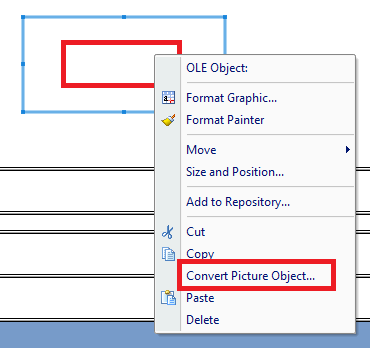
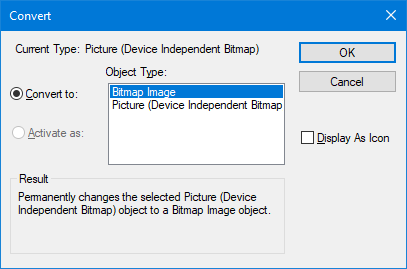
Right-click the image and see if you get the option to "Convert Picture Object". If you do, try converting it to a "Bitmap Image" object. Test the report and see if it works. If you don't see this option, go down to the next set of instructions.
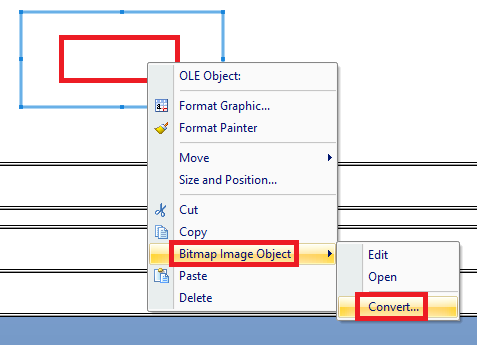
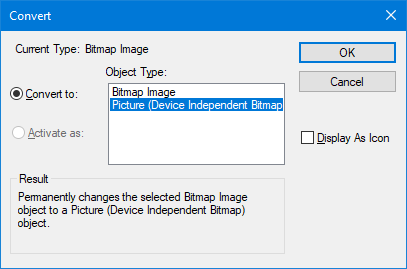
If you get the "Bitmap Image Object" option, hover over it and click the "Convert" option. Then try converting it to a "Picture (Device Independent Bitmap)" object.
------------------------------
David Speck II
Blytheco LLC
------------------------------
Original Message:
Sent: 01-29-2024 10:36
From: Kevin Moyes
Subject: Logo Disappearing on Crystal Report forms for Windows 11
Make sure you don't have anything enabled for the Graphic Location (image properties in the report), and it should use the embedded image.
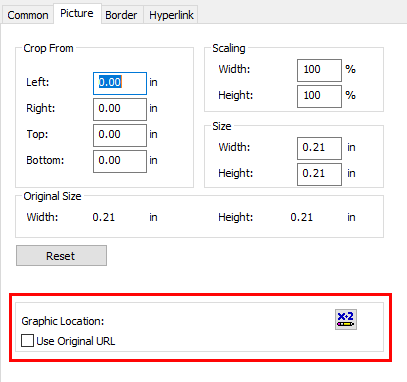
(The print driver can affect things too, so be sure to try to Preview with something generic like the Microsoft PDF printer).
------------------------------
Kevin Moyes
Technical Systems Analyst
Munjal White Consulting Co.
Toronto ON
------------------------------
Original Message:
Sent: 01-29-2024 10:21
From: Tara Schinkel
Subject: Logo Disappearing on Crystal Report forms for Windows 11
So the box is checked in Crystal reports but keep the ideas coming.

Tara Schinkel, CPA, Accounting Systems Lead & CFO
Stewart Technologies, Inc.
Champions for your efficiency.
main: 410.309.9550 x 1104
stewarttechnologies.com | Follow Stewart Tech on 
Original Message:
Sent: 1/29/2024 10:04:00 AM
From: David Speck II
Subject: RE: Logo Disappearing on Crystal Report forms for Windows 11
Is the image configured to use a formula to set the path to it or is it embedded? If setting the path, confirm the user can navigate to the path via File Explorer and check NTFS permissions.
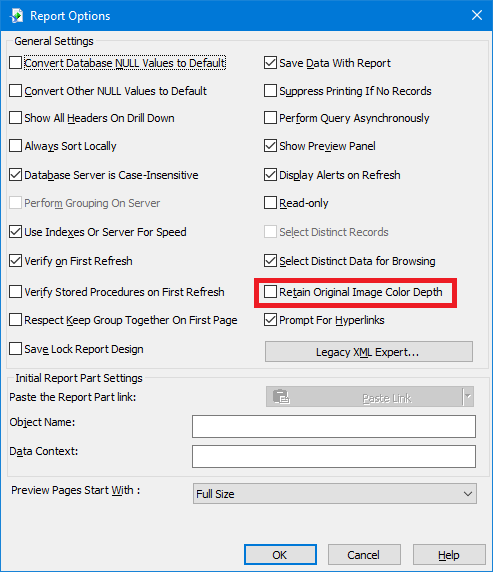
The other thing to check is open the report in CR Designer, click File, click Report Options, make sure the "Retain Original Image Color Depth" option is enabled, click OK, and save the report.
------------------------------
David Speck II
Blytheco LLC