Another tip that I just discovered when
using Excel 2013 there are TWO "From Other Sources" buttons when adding the 1st query to a worksheet!!! One on the Data tab and one on the Power Query tab. Use the one on the Power Query tab to access the new feature that stores the company code and credentials that are editable from the Data Source Settings button on the Power Query tab (2013), but are part of the Get Data tab on Excel 2016.
With Excel 2013 the "From Other Sources" button on the Data tab will lead to Microsoft Query. Instead use the Power Query tab.
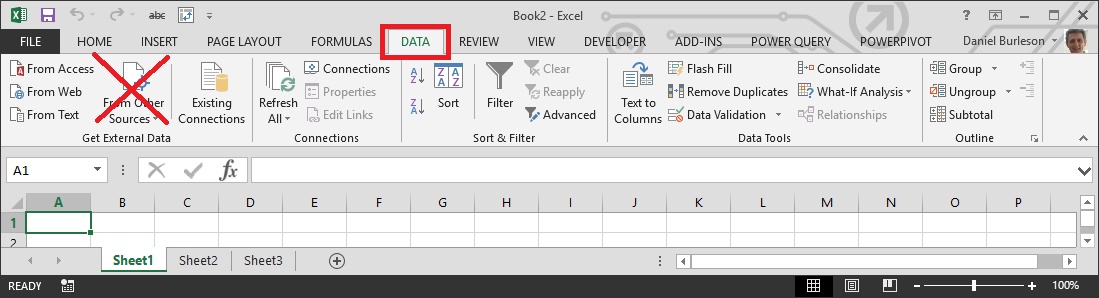
The Power Query add-in adds a "From Other Sources" tab that can be used with Power Query and save company code and credentials. See the "Power Query" tab and NOT the "Data" tab.
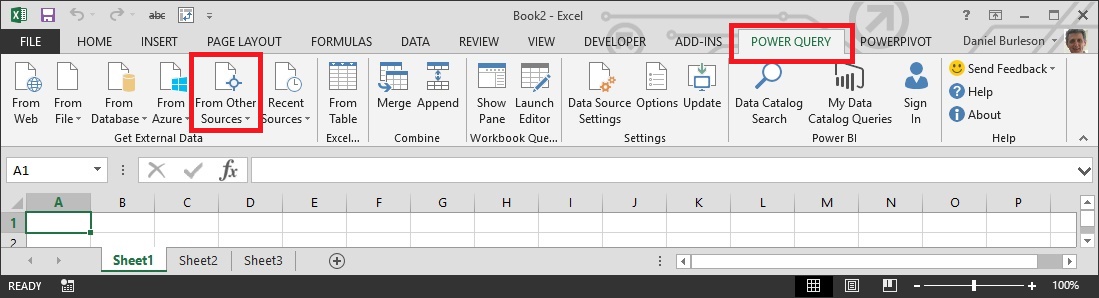
In Excel 2016 the Power Query "From Other Sources" command replaces the prior version of this command on the Data tab.
------------------------------
Dan Burleson
Software Consultant
Connex Software
Corvallis OR
541-224-6642
------------------------------
Original Message:
Sent: 03-06-2019 12:26
From: Clark Walliser
Subject: Excel Power Query - Setting SOTAMAS90 Credentials
Here's a Microsoft support link about the power query data source settings that says it applies to Excel 2013 and higher.
MS article on Power Query Data Source Permissions settings
The situation you might have run into is that Windows remembers the login credentials from the last time the data source was used.
And if those credentials were invalid, you can't get a connection.
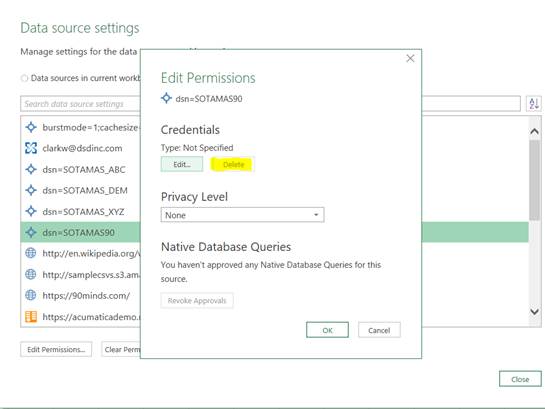
The solution is to edit the data source setting (SOTAMAS90) and Delete Credentials or Clear Permissions. This deletes the current login information, forcing a prompt to enter the new login information.
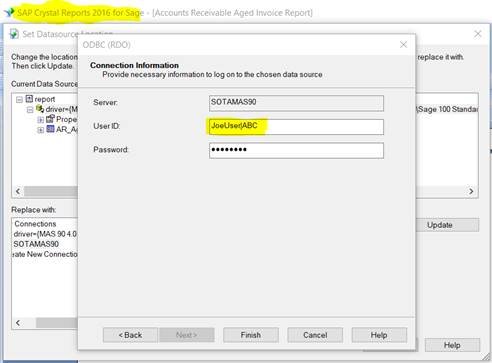
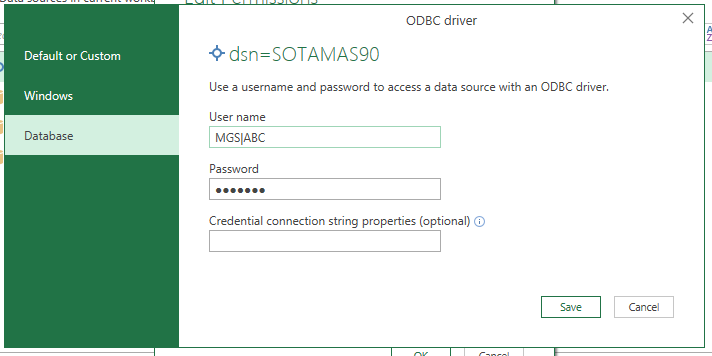
The SECRET to logging in is to type your Sage user login plus the pipe symbol (|) then the company code. All with no spaces. Not certain if it is case sensitive.
This is exactly the same as in Crystal Reports if you have ever gotten the Connection Information screen when logging in.
So far, this method has worked for all other apps I've worked with requiring an auto login odbc connection, such as Logicity Crystal Reports Scheduler.
Original Message------
Perfect timing on that tip. However, upon selecting SOTAMAS90, we weren't getting the same ODBC Driver logon screen as @Myron Stevenson posted above. But once we created a custom DSN (hard-coded with company/logon/pw) and picked that ODBC source, then we did get that logon screen - of which the tip worked! User has Excel 2013 so I'm not sure if that has something to do with it.
------------------------------
- Brett
------------------------------
Original Message:
Sent: 03-01-2019 02:20
From: Dan Burleson
Subject: Excel Power Query - Setting SOTAMAS90 Credentials
According to a post on TechNet, the credentials including the company code are not stored in the query but are stored encrypted specific to the user as shown below. One doesn't have to open a query or even open a spreadsheet containing a query to set or view the credentials.
Global Data Source settings are stored in User.zip (%LocalAppData%\Microsoft\Power Query for the addin, %LocalAppData%\Microsoft\Office\16.0\PowerQuery for Excel 2016).
The credentials are encrypted with a key specific to that user, so there's no simple way to roll out credentials to multiple users.
------------------------------
Dan Burleson
Software Consultant
Connex Software
Corvallis OR
541-224-6642
Original Message:
Sent: 02-28-2019 13:52
From: Myron Stevenson
Subject: Excel Power Query - Setting SOTAMAS90 Credentials
Tip from Power BI presentation from @Clark Walliser.
When connecting to SOTAMAS90 with Power Query, enter the User name as: Sage login, followed by |, followed by company code. The | in the pipe character. The image below illustrates this.
Added benefit - These credentials are saved within the the Power Query.
------------------------------
Myron Stevenson
Clearis Consulting
------------------------------