Posted on behalf of @CarmenCruz - she wrote this up since the Sage KB is wrong:
Complete steps to address "Save As" when using Paperless Office due to Windows Updates for Sage 100 Standard, Advanced and Premium.
Versions:
Sage 100 2019
Sage 100 2020
Resolution:
1. From Windows go to Start / Run
2. Enter "Regedit" click on Enter
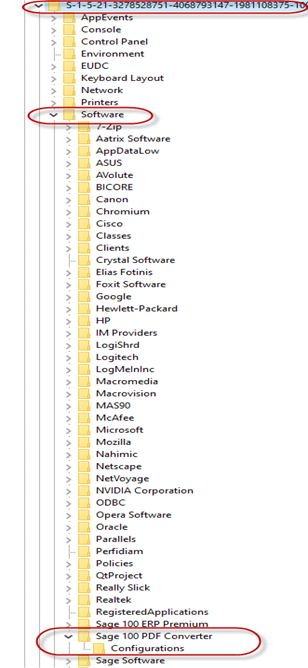
3. The first instance of the Sage 100 PDF Converter" will appear here HKEY_USERS\S-1-5-21……..
4. The Key can end differently on each user's system but general it is the first instance of that key
a. For this system it is the highlighted blue line below

5. In this system the first key appears as seen below
(Note: Reminder the full key can very but the beginning will always be the same)
a. HKEY_USERS\S-1-5-21-3278528751-4068793147-1981108375-1001\Software\
i. Expand this key
ii. When the Software key is expanded multiple Sage items are listed based on installation package
iii. Highlight the Sage 100 PDF Converter
iv. Right Click
v. Delete
vi.
6. Next let's go to the second instance of this key in Regedit
a. \HKEY_CURRENT_CONFIG\Software
i. Expand this key
ii. Highlight the Sage 100 PDF Converter
iii. Right Click
iv. Delete
v.

7. Leave RegEdit open
8. Open Control Panel
9. Go to Printers and Devices
10. Right click on "Sage 100 PDF Converter"
11. Select to Remove
12. Stay in Control Panel and go to Administrative Tools
13. Open Print Management
14. Highlight Amyuni Document Converter
15. Right click and Delete (regardless of version)
16. Now the system is clean
17. Open Sage 100
18. Go to File / Run
19. Enter PL_AdvancedOptions_UI
20. Ok to Accounting Date
21. Check LockFile
22. Click on Uninstall Paperless (although it was done earlier want to be sure nothing left behind)
23. Click on Install Paperless Office
24. Go back to Regedit
25. Verify that both "Sage 100 PDF Converters" have been created
26. There have been instances where this does not get recreated
27. Either way delete it again to import a new instance that has more information
a. \HKEY_CURRENT_CONFIG\Software
i. Expand this key
ii. Highlight the Sage 100 PDF Converter
iii. Right Click
iv. Delete
v.

28. Below is replacement RegKey
https://www.dropbox.com/s/p2gwhnoshzpgp3v/Sage%20100%20PDF%20Converter.reg?dl=0
29. Download
30. Double click on file to add to Regedit
31. Yes to prompt
32. Ok when completed
33. Click F5 to refresh Regedit and you will see the changes
(NOTE: Currently the key remembers the last thing printed in house. However, after you complete your testing you will see the last thing that you printed)
34. Log out of Sage completely
35. Log back into Sage
36. Test
------------------------------
Moira Goggin
Chismet Consulting Corp.
Long Beach CA
------------------------------