You can't do this with a runtime filter that lets the user change the conditions of each field and value used in the multiple conditions easily on the fly but you can do this with a calculated column that evaluates to 1 (true) and then set a filter on the calculated column equaling 1.
- Create a new lookup view.
-
- Option 1 (requires AR_Salesperson.SalespersonName to be added to lookup before new calculated field).
- Add AR_Salesperson.SalespersonName.
- Create a new field.
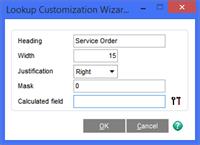
- Enter this calculation. This is checking if the sales order number begins with S or if the salesperson name is Service
-
(UCS(MID(STR(SalesOrderNo),1,1))=UCS("S") OR UCS(STR(alt.SalespersonName$))=UCS("Service"))
- Results without any filters applied.
-
- Option 2 (does not require AR_Salesperson.SalespersonName to be added to lookup at all but is added in this example so you can see it is working as expected).
- Create a new field.
- Enter this calculation. This is checking if the sales order number begins with S or if the salesperson name is Service
-
(UCS(MID(STR(SalesOrderNo),1,1))=UCS("S") OR UCS(STR(FNREAD$(STR(SalespersonDivisionNo)+STR(SalespersonNo), "AR_Salesperson", "1", 0, "SalespersonName")))=UCS("Service"))
- Results without any filters applied.
-
- Use the new calculated field in a filter, either at runtime or as a hardcoded filter for the lookup view.
-
Final notes.
- You can use this approach for just about anything you can think of.
- When using string fields in the calculation, make sure you do not include the trailing $, instead, wrap the field name in the STR() function.
- You can alternately add the "dat." prefix to a field name that is in the primary table, however a string field must include the trailing $.
- If you add fields from another table, you can optionally add the "alt." prefix to a field name that is from another table, however a string field must include the trailing $.
- You can use the FNREAD (for numeric fields) and FNREAD$ (for string fields) to return a value from another table.
- The first argument must be the full primary key of the target table.
- You must properly pad all parts except the last for multi-part keys.
- The second argument is the target table.
- The third argument appears to change the way the function behaves when a match is not found in the target table for the provided key.
- Anything other than the value "1" will result in a hard error warning that the lookup is corrupt in the event a matching record is not found in the target table for the provided key.
- This fourth argument appears to be the zero based number indicating the index to use for the target table.
- For example, i have prefixed each index with its zero based index number available for AR_Customer in the following list.
- 0 = KPRIMARY: ARDivisionNo+CustomerNo
- 1 = KNAME: CustomerName+ARDivisionNo+CustomerNo
- 2 = KSORT: SortField+ARDivisionNo+CustomerNo
- 3 = KSALESPERSON: ARDivisionNo+SalespersonNo+CustomerNo
- 4 = KTYPE: CustomerType+ARDivisionNo+CustomerNo
- 5 = KZIPCODE: ZipCode+ARDivisionNo+CustomerNo
- 6 = KTELEPHONE: TelephoneNo+ARDivisionNo+CustomerNo
- 7 = KCUSTOMERNO: CustomerNo
- 8 = KADDRESS1: AddressLine1+ARDivisionNo+CustomerNo
- 9 = KADDRESS2: AddressLine2+ARDivisionNo+CustomerNo
- 10 = KADDRESS3: AddressLine3+ARDivisionNo+CustomerNo
- The fifth argument is the target field.
- You do not need to include the trailing $ for string fields.
------------------------------
David Speck II
Tennessee Software Solutions
------------------------------
Original Message:
Sent: 05-22-2020 17:31
From: Jim Fuller
Subject: ALE Lookups /Custom Lookups
Thanks. Searching isn't the issue as much as being able to filter a custom lookup where the filters are "either/or" as opposed to absolute. I will download the search though as this client is already an xkzero user. Might be willing to add it on if it proves useful to them.
------------------------------
Jim Fuller
Velosio LLC
------------------------------
Original Message:
Sent: 05-22-2020 14:39
From: Paul Ziliak
Subject: ALE Lookups /Custom Lookups
Jim - we have a global search tool for Sage 100. You can download a copy from our website at www.xkzero.com/erp-search. Attached is a product guide. If you want any help, or if you'd like a demo of how you can use our search tool to do what you're describing just let me know.
------------------------------
Paul Ziliak
co-f0under
xkzero
847-416-2009
www.xkzero.com